
Analysis Notes
Analysis Notes is a session-linked scientific scratchpad built directly into RayMol. It allows you to document observations side by side with molecular structures, bookmark key camera angles and complete scenes, and embed the entire record into portable .pse session files.
Open the Notes tab in the inspector panel. On macOS, you can also click the detachable window button (Open Notes in a detachable window) to pop Notes out into an independent floating window.
Managing note pages & structure
Section titled “Managing note pages & structure”Notes supports multi-document workspaces and structured Markdown formatting:
- Document pages: Click the document menu in the header (displaying the active note name) to switch pages or select New Note…, Rename Current Note…, or Delete Current Note.
- Edit and Preview modes: Toggle between Edit mode to write Markdown and Preview mode to view formatted text and click interactive view links.
- Persistent editing mode: Inserting snapshots, view bookmarks, or measurements preserves your active editing mode without switching you to Preview.
- Search and filters: Type in the search field and press Return to show only the matching lines in Preview.
- Outlines and tags: Click the Heading outline menu or the Note tags menu to choose a heading or tag to filter the Preview to lines containing it.
- Text size: Adjust font size using the Decrease/Increase note text size controls.
Bookmarking views & snapshots
Section titled “Bookmarking views & snapshots”To connect your text notes to specific molecular conformations in the 3D viewport, open the Insert Image / View menu at the bottom of the inspector:
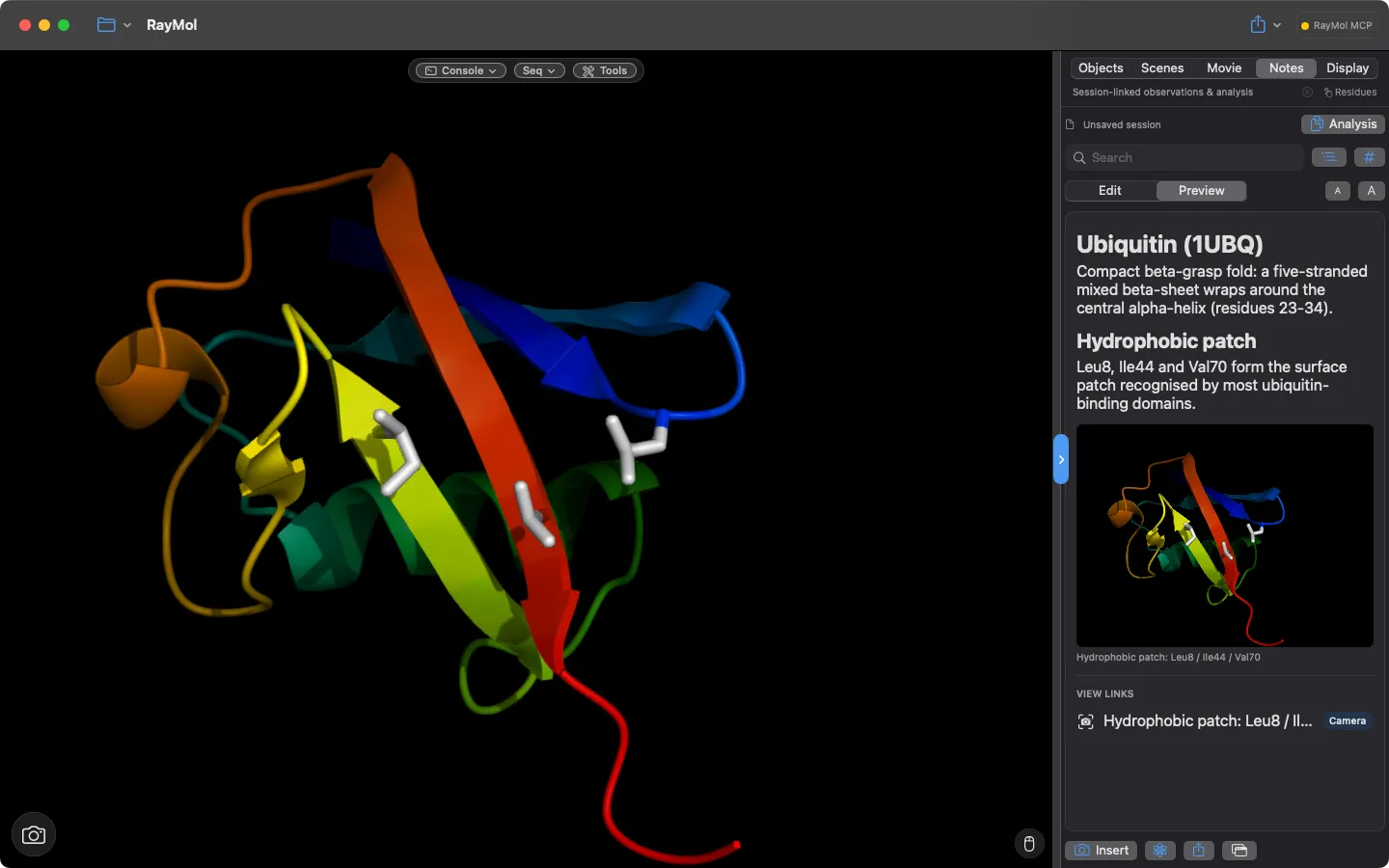 An analysis note in Preview with headings, text and a clickable camera-link thumbnail.
- Image from Current View: Renders an image of the current viewport and inserts it directly into your note as an embedded figure.
- Camera Link: Captures the current camera orientation, translation matrix, clipping planes, and zoom level. Clicking a camera link restores your exact viewpoint without altering object visibility, representations, or color assignments.
- Scene Link: Stores a full PyMOL scene (view, representations, colors and the other state PyMOL scenes capture). Clicking it animates back to that scene. Save the
.pseafter adding one.
When inserting a view bookmark, enter a descriptive label (such as Glu286 active site salt bridge) instead of a generic name.
Inserting scientific measurements & selections
Section titled “Inserting scientific measurements & selections”The Insert structured scientific data menu allows you to insert structured text summaries of active selections and measurements:
- Selected Residues: Inserts a bulleted list of the residues in
sele. In Preview, clicking one selects and zooms to that residue. - Contacts Around Selection: Inserts the residues outside
selethat lie within 4.0 Å of it. - Current Measurements: Inserts distances, angles and dihedrals created with RayMol’s measurement tool during the current run.
If there is no sele selection (or no measurement), RayMol shows a Nothing to Insert alert and leaves the note unchanged.
Saving & exporting notes
Section titled “Saving & exporting notes”Session embedding
Section titled “Session embedding”Analysis notes are automatically staged and embedded within the .pse file whenever you save your session (File ▸ Save Session or ⌘S).
Notes, including their images, are stored inside the .pse file. Standard PyMOL ignores them, so the file still opens in PyMOL.
File export
Section titled “File export”To share notes outside of a RayMol session, click the Export Analysis Notes menu at the bottom of the panel:
- Export Clean Markdown…: Generates a standalone
.mdtext file containing your formatted note text and heading structure. - Export HTML with Images…: Packages your formatted notes, rendered screenshots, and layout into a self-contained HTML document suitable for web viewing or archiving.
- Export PDF with Images…: Compiles a publication-ready PDF report containing formatted text, embedded figures, and headings.