
Sequence Design
Design mode brings on-device sequence design and inverse folding to RayMol, powered by an embedded implementation of ProteinMPNN running on Apple Silicon via MLX. You can score native backbone compatibility, inspect residue propensities, introduce point mutations with real-time repacking, and redesign selected structural regions entirely offline.
Enter Design mode by choosing Tools ▸ Enter Design Mode or pressing ⌃D.
On macOS, press Esc to leave Design mode (edits are kept, as with Done).
How Design mode works
Section titled “How Design mode works”Design mode works directly on structures loaded in your session:
- 100% offline: Model weights and neural network inference run locally via Metal. No sequences or structures are sent over the network.
- Target selection: The Target field specifies which structure or object Design mode operates on. You can type an object name or choose one from the dropdown.
- Region selection: Region redesign is driven by PyMOL’s standard
seleselection. Residues you click in the 3D viewport or select via the sequence viewer become part of the redesign target.
When Design mode opens, sidechains on the target structure are displayed as sticks by default, and residues outside the target object are dimmed.
Confidence coloring
Section titled “Confidence coloring”Design mode scores the target backbone and applies per-residue colors according to how well the sequence fits the structure:
- Native fit (default): Measures how well ProteinMPNN thinks each position fits the amino acid that is currently present. Colored using a red-white-blue diverging palette (red = poor fit, white = neutral, blue = strong native fit).
- Certainty: Measures how confident the model is in its own predicted choice at that position (calculated as $1 - \text{entropy}/\ln 21$). Colored using a blue-white-red palette (blue = low certainty / flat distribution, red = high certainty).
Toggle between coloring schemes in the docked Design panel. These scores are
automatically recorded in the session’s Object Metrics
store under the keys native_fit and certainty.
Propensity inspector
Section titled “Propensity inspector”Hover over or click to pin any residue in the 3D viewport or sequence strip:
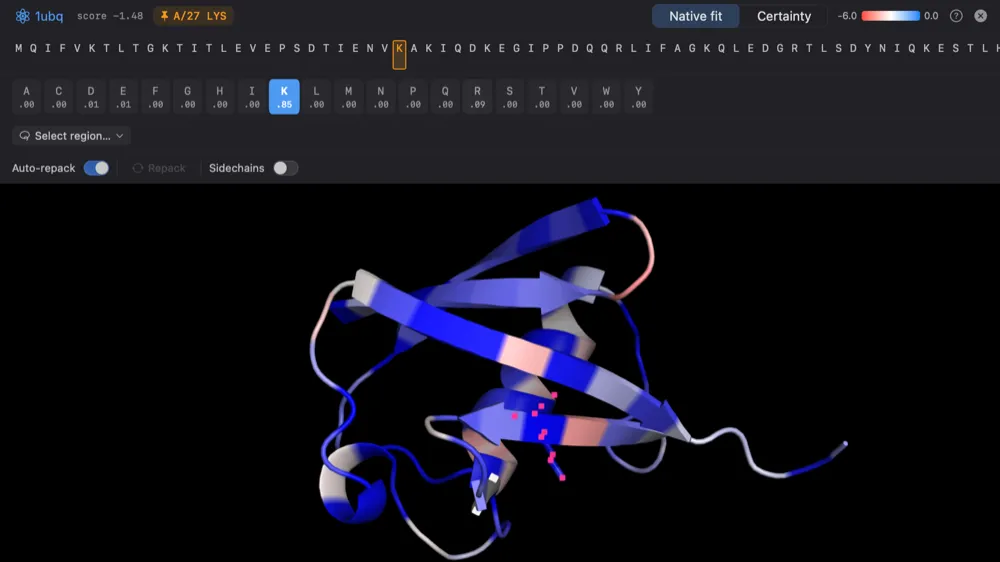 Design mode: per-residue propensities above a structure colored by native fit.
- Propensity bar chart: Shows the full 20-amino-acid probability distribution predicted by ProteinMPNN for that backbone position.
- Live sidechain preview: Hovering over an amino acid bar in the inspector displays element-colored sticks for that candidate sidechain directly in the 3D scene without modifying your structure.
- Pinned residue: Clicking a residue pins the inspector so you can evaluate alternate sidechains without moving the pointer away.
Point mutations and live repacking
Section titled “Point mutations and live repacking”You can mutate individual residues and evaluate their impact immediately:
- Hover or pin the residue you wish to change.
- Select the desired amino acid from the propensity inspector.
- RayMol creates a working copy of your structure (e.g.
obj_design) so your original object remains untouched. - RayMol instantly rescores the sequence and repacks the mutated sidechain with ProteinMPNN’s sidechain packer.
Compare and Keep / Discard
Section titled “Compare and Keep / Discard”While editing a working copy:
- Cmp (Compare): toggles a comparison against the original structure. Choose overlay or a side-by-side view with the Side-by-side switch in Design settings.
- Keep: Finalizes your mutations and preserves the edited object in your session.
- Discard: Discards the working copy and restores the original structure.
Region redesign
Section titled “Region redesign”To redesign an entire loop, pocket, or binding interface:
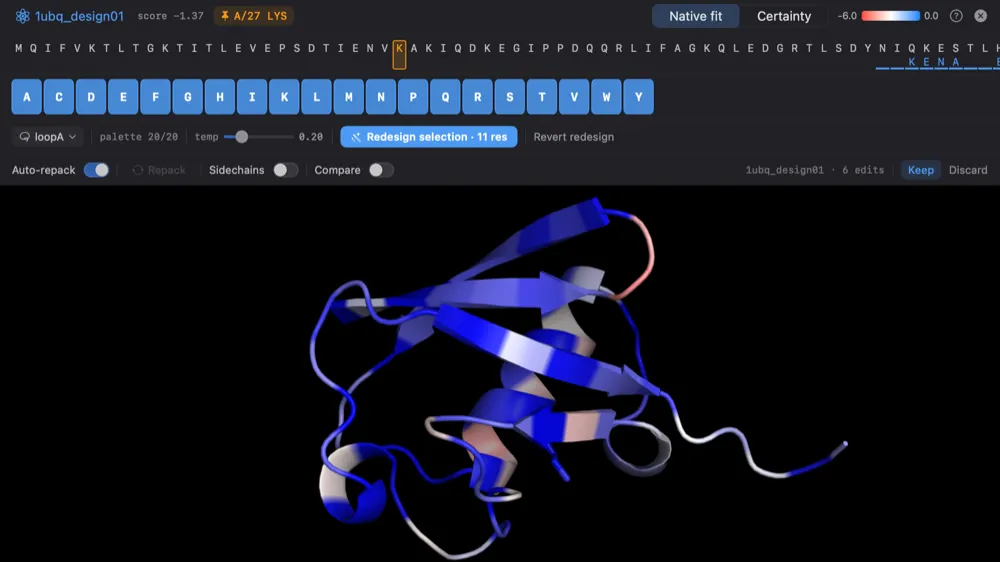 Redesigning a selected region.
- Select the desired residues using PyMOL’s standard selection syntax (e.g.
select sele, resi 45-60) or by clicking them in the viewport. - Under the Design action row, configure amino acid restrictions if desired (use the pill row to omit specific residue types like Cys or Pro).
- Click Redesign selection. ProteinMPNN generates sequence candidates for the selected region while holding the rest of the protein sequence and backbone fixed.
- Review the newly suggested sequence and its repacked sidechain conformations.
- Use Revert redesign to undo the last region redesign (earlier manual edits are kept).
Metric persistence
Section titled “Metric persistence”Scored residues and design evaluations are stored permanently with the object in the RayMol session. You can re-examine, re-color, and export these values at any time using the Metrics commands:
metrics_get myprotein_design, native_fitmetrics_color native_fit, myprotein_designRelated workflows
Section titled “Related workflows”- Learn selection commands and modifiers in Selecting.
- Predict 3D structures from newly designed sequences in Structure Prediction.
- Export metrics to CSV or JSON in Metrics.
- View all command-line tools in Commands Reference.