
Studio Lights & Atmosphere
Studio lights introduce a dedicated photography lighting rig to RayMol. Instead of relying solely on PyMOL’s fixed camera-relative shading, you can position up to six independent spot lights around your structure, tint them by color temperature or RGB values, cast colored shadows, and illuminate atmospheric haze and floating dust.
Core concepts
Section titled “Core concepts”- The rig belongs to the scene: A rig contains up to six spot lights, up to three of which can cast shadows. The rig never modifies object colors, materials, or atomic coordinates.
- Non-destructive: Turning the rig off (
lights off) immediately gives back PyMOL’s own lighting (yourdirect,reflect,specularandambientsettings) exactly as it was without altering any underlying object settings. - Camera vs. pinned lights: By default, a light is a camera light (
anchor=camera) that rotates with your viewpoint, maintaining constant illumination on the visible face. Settingpin=1(pinned light) locks the light in world space so it stays fixed relative to the scene and turns with the molecule. - The frame: The rig’s center is calculated from the bounding box of enabled objects, where 1× radius corresponds to the bounding sphere of the structure. Zooming or panning does not distort or displace the lights. Use
lights recenteror Re-centre in the interface to recalculate the frame after loading or showing new geometry.
Quick start
Section titled “Quick start”Apply a studio preset, tweak a light, add atmospheric haze, and inspect the rig:
lights three_pointlights key, warmth=3800, intensity=1.3lights rim, color=cyanatmosphere haze=0.2, dust=0.4lightsToggle the rig on and off at any time:
lights offlights onPresets
Section titled “Presets”RayMol provides seven built-in studio presets. Applying a preset replaces existing lights while preserving atmospheric haze and dust settings:
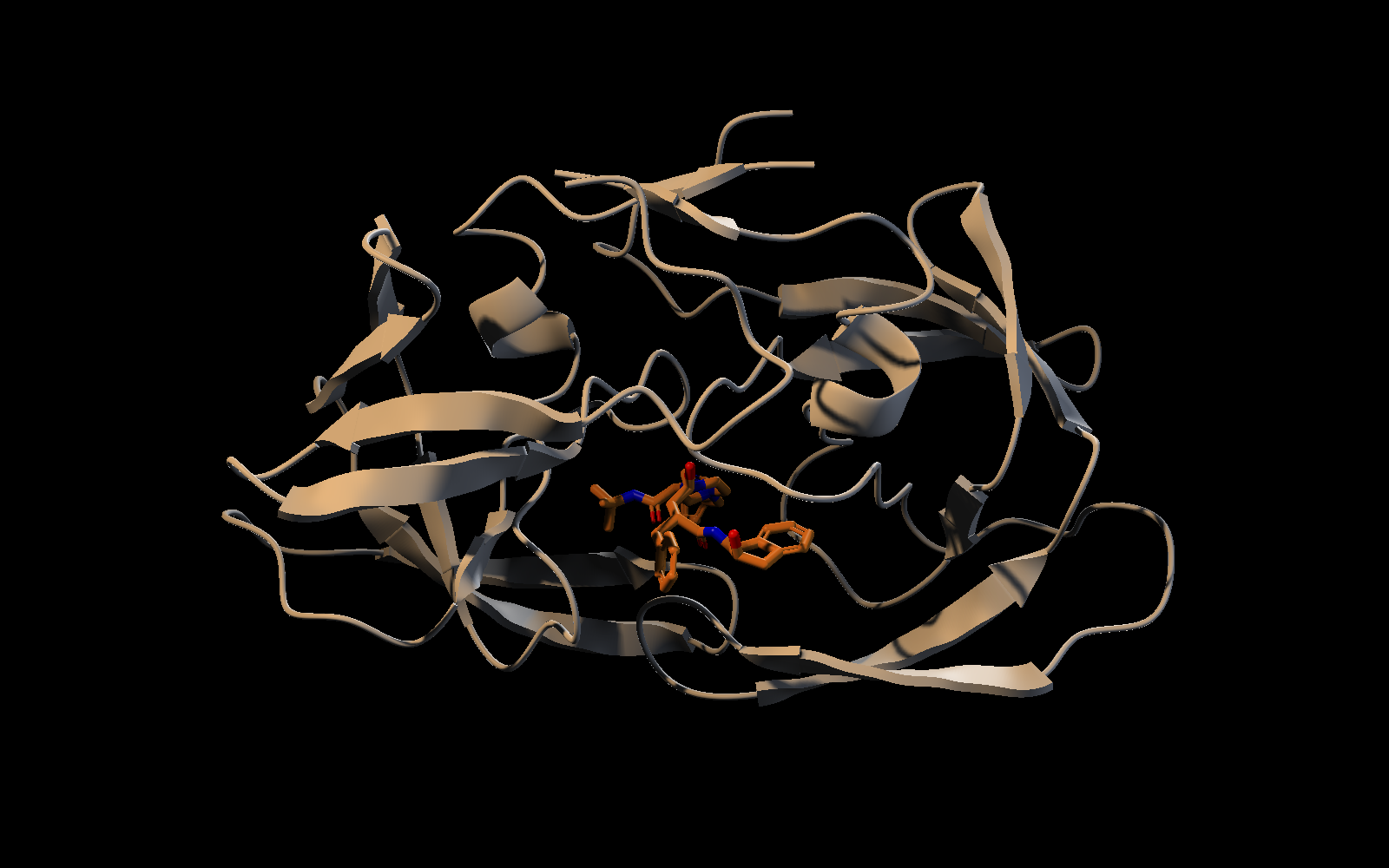
three_point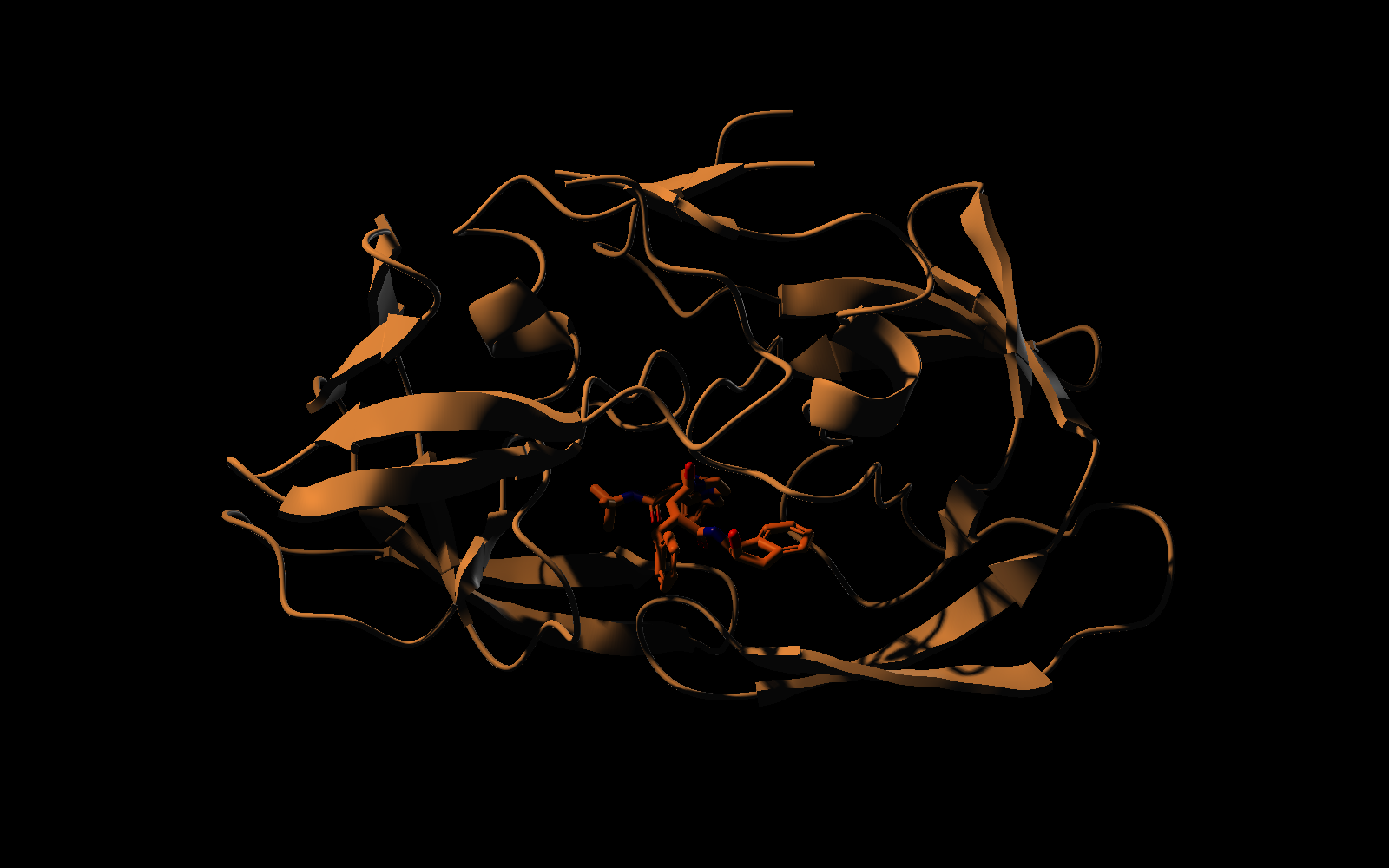
rembrandt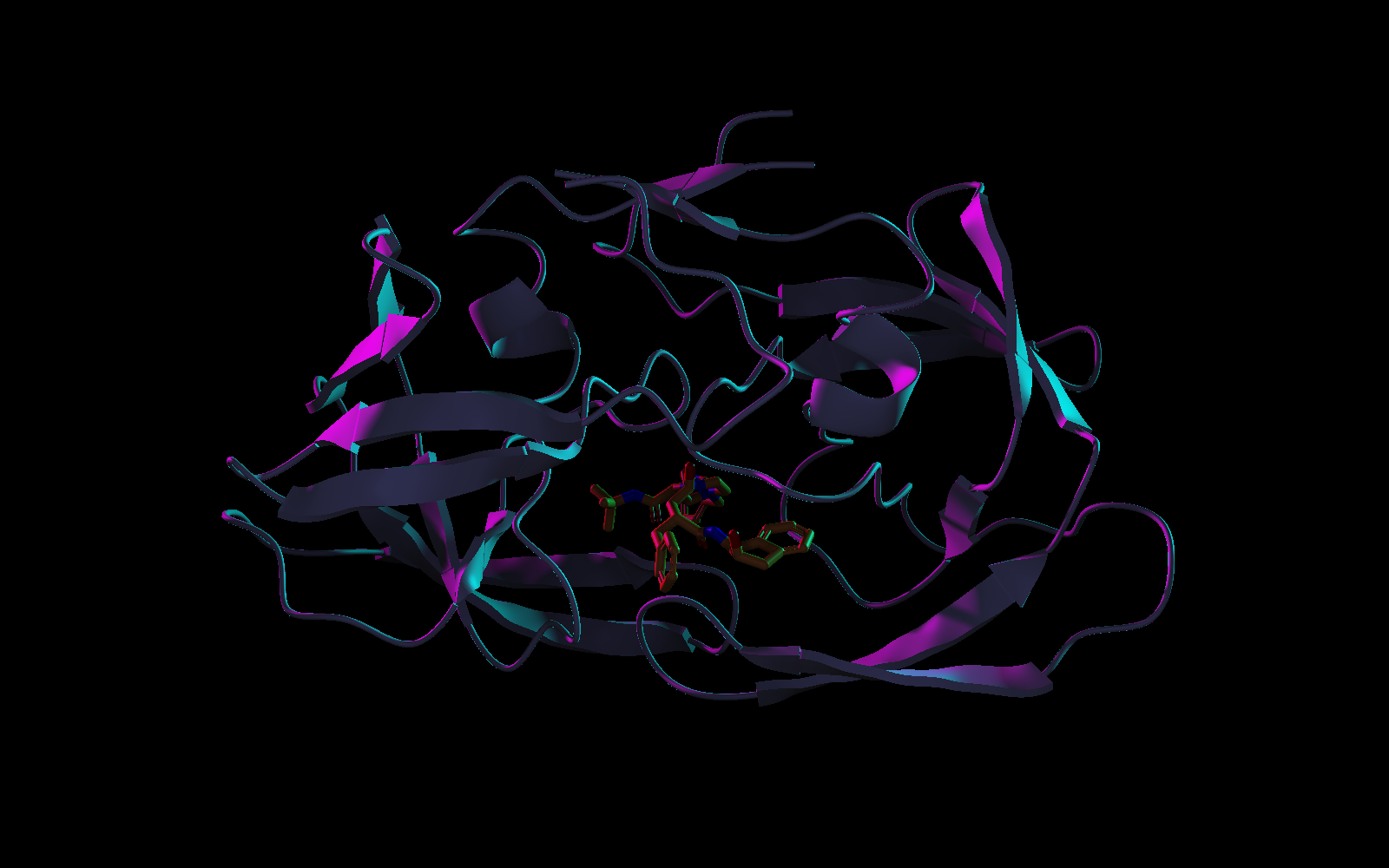
neon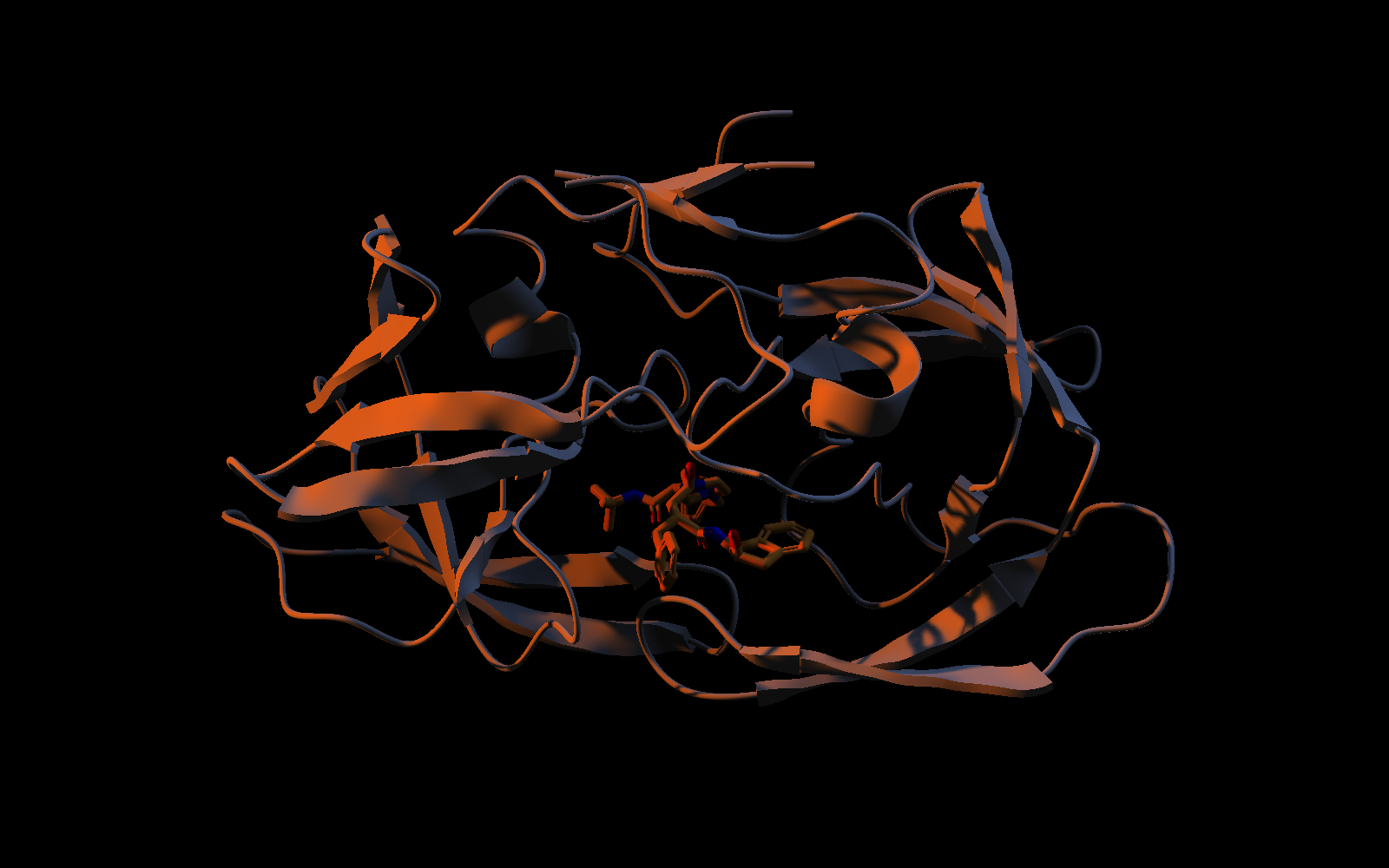
sunset| Preset | Active lights | Default ambient | Description |
|---|---|---|---|
three_point |
key, fill, rim |
0.10 | Classic portrait setup: warm key light with shadow, cool fill, neutral white rim. |
softbox |
left, right, top |
0.16 | Product lighting: two large, soft lateral lights and a gentle overhead fill. |
spotlight |
spot, bounce |
0.05 | Theatrical setup: narrow beam focused from above with subtle bounce. |
rembrandt |
key, kicker |
0.04 | Dramatic high-contrast portrait: high side key light producing strong cast shadows. |
neon |
magenta, cyan, front |
0.06 | Stylized rims: magenta and cyan edge lights from behind with dim violet front fill. |
sunset |
sun, sky |
0.08 | Low, warm golden-hour direct sunlight balanced by a cool skylight fill. |
underlight |
under, rim |
0.04 | High-contrast dramatic angle: upward green-tinted key light with red rim accent. |
To apply a preset from the command prompt:
lights softboxlights neon, ambient=0.1Interactive Lights mode
Section titled “Interactive Lights mode”For visual adjustments, enter interactive Lights mode: choose Tools ▸ Enter Lights Mode in the menu bar (macOS), or Lights in the Tools button’s menu (Mac, iPad and iPhone).
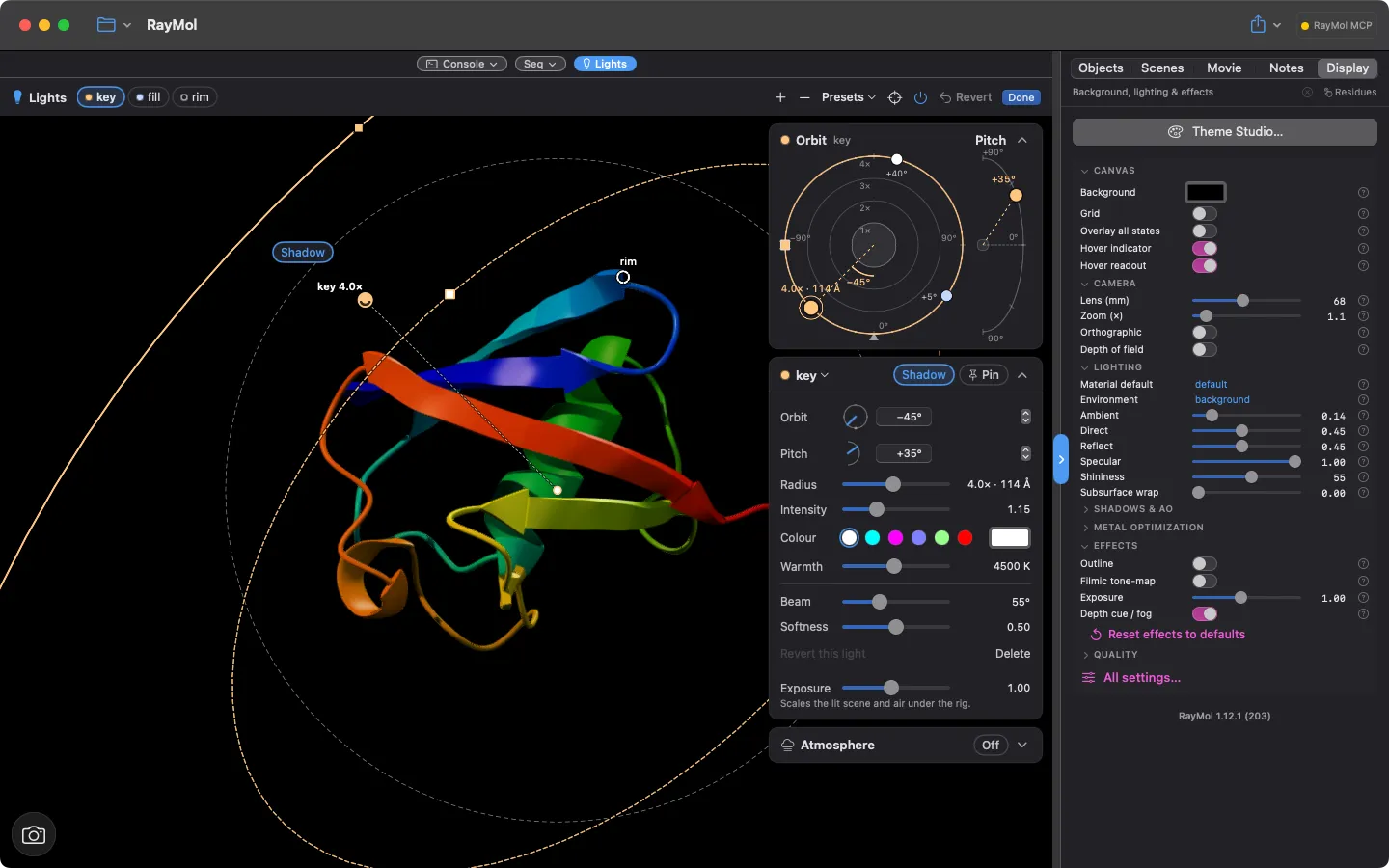 Lights mode with the three-point rig: the Lights bar, orbit view and light inspector.
The Lights bar
Section titled “The Lights bar”When entering Lights mode, a floating toolbar appears across the top of the viewport:
- Light chips: Displays each configured light as a colored indicator dot matching its emitted color and warmth. A hollow ring indicates the light is currently positioned behind the molecule. Click a chip to select that light.
- Add / Remove: Add an extra spot light (up to 6 total) or delete the selected light.
- Presets: Quick selector menu for built-in studio presets.
- Re-centre: Recalculates the rig frame center and radius from currently visible geometry.
- Lights switch: Toggles the entire rig on or off.
- Revert & Done: Click Revert to discard changes made during the current editing session and restore the initial rig. Click Done (or press
Esc) to exit Lights mode and retain all adjustments.
On-screen gizmo and gestures
Section titled “On-screen gizmo and gestures”Lights mode displays interactive 3D handles directly over the viewport:
- Knobs: Each light appears as a sphere knob positioned on the rig’s outer bounds. Drag a knob to move the light across the sphere. Dragging a knob across the silhouette edge transitions it between front and rear hemispheres.
- Beam and softness rings: Selecting a light reveals concentric ring handles. Drag the outer ring to adjust beam width (
beam). Drag the inner ring to adjust edge falloff (softness). - Aim dot: Drag the central aim dot to aim the light directly at any point on the molecular surface under your cursor. Double-click the aim dot (or double-tap on iOS/iPadOS) to snap the aim back to the rig’s center (
aim=centre). - Radius: Scroll your mouse wheel or trackpad over a light knob to adjust its distance (
radius). - Highlight placement: Option-click (macOS) or long-press (iOS/iPadOS) directly on the molecule to calculate and position a specular highlight exactly on that surface patch.
- Shadow chip: Click the Shadow tag adjacent to the selected light’s knob to toggle shadow casting.
Orbit view and Inspector
Section titled “Orbit view and Inspector”The side panel houses complementary controls:
- Orbit view: A top-down planar map showing the position of all lights relative to the camera (positioned at the bottom) and the central molecule. Drag any lamp icon to adjust azimuth orbit angle (
orbit). Drag the square slider on the selected light’s distance ring to adjust radius. Use the vertical pitch arc to adjust elevation (pitch). - Lights Inspector: Fine-tune numerical values using Orbit and Pitch (dial, field and stepper), sliders for Radius, Intensity, Warmth, Beam and Softness, colour swatches and a picker, the Shadow and Pin toggles, Revert this light and Delete.
Command-line syntax
Section titled “Command-line syntax”Configure lights using the lights command:
lights # Print summary of active riglights <preset> [, ambient=a] # Apply presetlights add [, name] [, field=value ...] # Add a new lightlights <name>, field=value ... # Modify a lightlights remove, <name> # Remove a lightlights on | off | clear | recenter # Rig state managementPositioning and targeting helpers
Section titled “Positioning and targeting helpers”Automate light positioning relative to specific molecular features or residues:
target=<selection>: Aims the light cone at the centroid of the specified selection and automatically sets the beam angle to enclose its bounding radius plus 1.5 Å:lights key, target=organichighlight=<selection>: Calculates the surface normal at the selection’s center and repositions the light to produce a specular reflection toward the current camera view:lights add, rim_spec, highlight=chain A, beam=25click=x/y: Calculates surface normal under normalized viewport coordinates (-1to1, where0/0is center) and places a highlight light.rim=<degrees>: Used alongsidehighlight=orclick=to offset the light around the normal away from the camera direction (0 to under 180°), creating a rim light effect:lights rim, highlight=organic, rim=140pin=1: Locks the light in place at its current position:lights key, pin=1
Python API
Section titled “Python API”The pymol.cmd module provides equivalent programmatic control:
from pymol import cmd
# Apply presets and edit lightscmd.lights("three_point")cmd.lights("key", warmth=4200, intensity=1.2, shadow=True)cmd.lights("add", "accent", orbit=135, pitch=-20, color=[0.3, 0.7, 1.0])
# Inspect and export the rig structurerig_dict = cmd.get_lights()rig_dict["lights"][0]["intensity"] = 1.5cmd.set_lights(rig_dict)
# Configure atmospherecmd.atmosphere(haze=0.25, dust=0.5, dust_size=0.4)
Atmospheric haze and dust
Section titled “Atmospheric haze and dust”Studio lights can shine through volumetric atmosphere using the atmosphere command or the Atmosphere card in Lights mode:
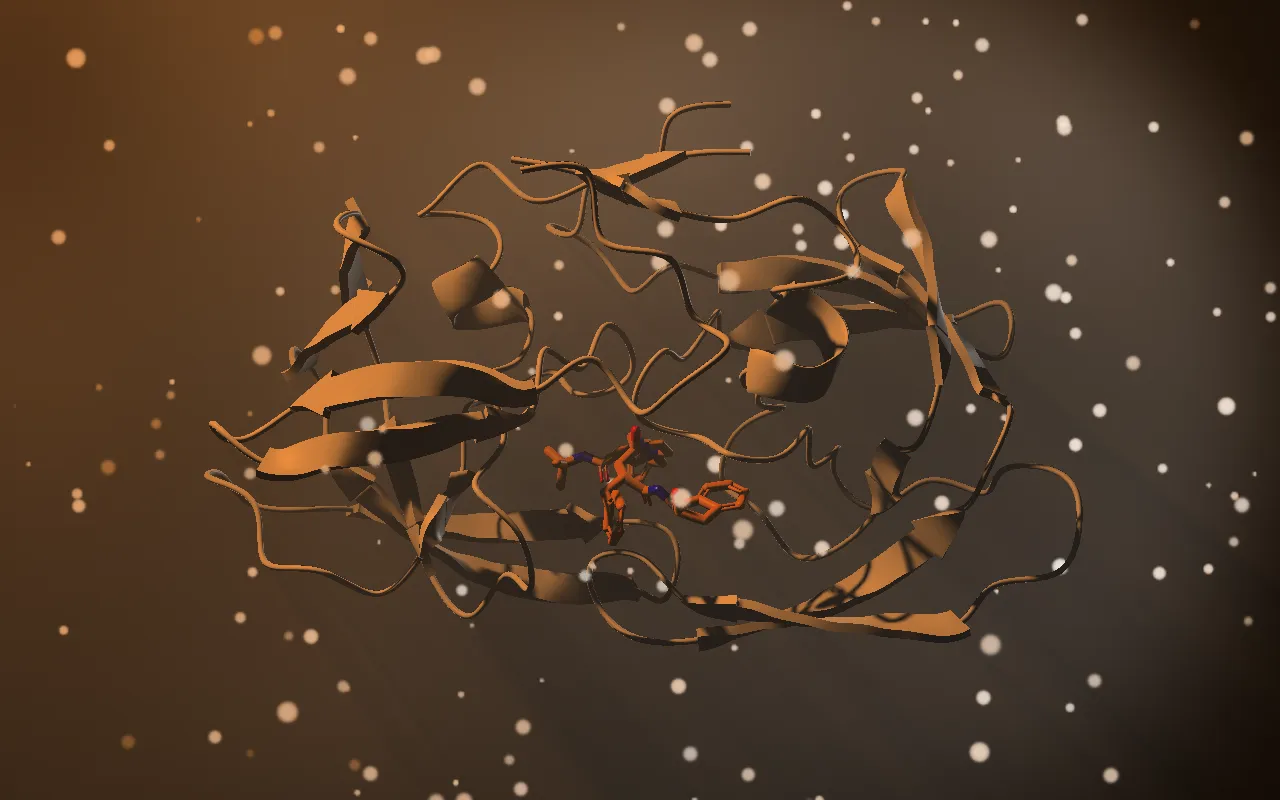 Haze and dust with the rembrandt key light shining through it.
atmosphere haze=0.3, dust=0.5, dust_speed=1.0atmosphere off- Volumetric light shafts: When a light with
shadow=1shines through haze (and Shadows/metal_shadowsis on), molecular geometry casts visible volumetric shadow shafts. - Drifting dust: Dust motes catch light glints within active light cones. In the live viewport, dust motes drift at up to 30 frames per second when the window is active. Drift automatically pauses during Low Power Mode or thermal throttling.
- Deterministic renders: Set
metal_light_air_timeto a fixed number of seconds (e.g.set metal_light_air_time, 0) to freeze dust positions for reproducible static exports and publication figures. - Backlit haze and extinction: Looking directly into back lights or rim lights through dense haze can wash out the scene due to forward Mie scattering. RayMol models Beer-Lambert extinction to attenuate background structures naturally. If backlighting causes excessive blowout, reduce haze, decrease scattering, or lower exposure:
set metal_exposure, 0.7
- Transparent exports: By default, transparent PNG exports (
ray_opaque_background 0) discard air over empty backgrounds. Setset metal_light_air_alpha, 1to include volumetric scattering over the transparent background.
Colored shadows and HDR
Section titled “Colored shadows and HDR”- Colored shadows: Each light casts its own shadow, in its own colour: a red light’s shadow is where the red light does not reach. Studio shadows require the global shadows setting to be active (
set metal_shadows, on). If shadows are turned off, the Lights Inspector displays a Turn On prompt. - HDR tone mapping: Studio light calculations run in high dynamic range (HDR). Rather than clipping abruptly to pure white when intensity exceeds 1.0, colored lights maintain their distinctive hue saturation up to
intensity=4.0. - Exposure scaling: Under a studio rig with HDR active,
metal_exposurescales the illumination from studio lights and atmospheric air without washing out solid background colors or UI label text. - Legacy 8-bit soft knee: To revert to classic 8-bit color response without HDR roll-off, set:
set metal_light_hdr, 2
Sessions, scenes, and movies
Section titled “Sessions, scenes, and movies”- Session files (
.pse): Rigs and atmosphere parameters are saved directly in PyMOL session files (.pse). When opened on builds without studio light support, the session falls back cleanly to standard PyMOL lighting. - Scenes: Each stored scene (
scene <name>, store) captures its own rig and atmosphere settings. Recalling a scene restores its exact lighting configuration. - Movie transitions: Authoring movie transitions between scenes with different rigs automatically interpolates light positions, colors, beam spreads, intensities, and atmospheric parameters along the camera animation path.
Reference tables
Section titled “Reference tables”Light properties
Section titled “Light properties”These fields configure individual lights via lights <name>, field=value ... or lights add:
| Field | Alias | Range | Default | Description |
|---|---|---|---|---|
orbit |
az |
-180 to 180° (wraps) | 0 |
Azimuth angle: 0 at camera, +90 camera-right, 180 behind. |
pitch |
el |
-90 to 90° | 30 |
Elevation angle: 0 level with camera, +90 top, -90 below. |
radius |
dist |
0.5 to 8.0 | 4.0 |
Distance in scene radius units (1.0 is molecular bounding sphere). |
beam |
1 to 170° | 45 |
Full cone angle of the spot beam. | |
softness |
soft |
0.0 to 1.0 | 0.4 |
Proportion of the outer beam cone that fades smoothly to dark. |
color |
colour |
RGB or color name | white |
PyMOL color name, hex code (0xRRGGBB), or named warmth (warm, neutral, cool). |
warmth |
kelvin |
1500 to 15000 K | 6500 |
Correlated color temperature in Kelvin. |
intensity |
int |
0.0 to 4.0 | 1.0 |
Emission brightness multiplier. |
highlight |
spec |
0.0 to 1.0 | 0.5 |
Strength of specular reflection glints. |
falloff |
0 to 2 | 2 |
Distance attenuation exponent (2 is inverse-square, 0 is uniform). |
|
shadow |
0 or 1 |
0 (new lights from lights add or + start at 1 while fewer than 3 lights cast shadows) |
Casts the light’s own shadow (at most 3 lights per rig). | |
outline |
cue |
0 or 1 |
0 |
Draws visual beam intersection ring on molecular geometry. |
anchor |
camera or pinned |
camera |
Follows camera view orientation or stays pinned to world space. | |
aim |
Point or selection | centre |
Target coordinate: centre, coordinates x/y/z, or selection centroid. |
Global rig properties
Section titled “Global rig properties”These parameters configure the overall rig via lights field=value ...:
| Field | Range | Default | Description |
|---|---|---|---|
ambient |
0.0 to 1.0 | 0.05 |
Replaces global ambient light setting while rig is active. |
classic |
0.0 to 1.0 | 0.0 |
Scales PyMOL’s own direct, reflect and specular lights while the rig is on. |
Atmosphere properties
Section titled “Atmosphere properties”These fields configure volumetric effects via atmosphere field=value ...:
| Field | Range | Default | Description |
|---|---|---|---|
haze |
0.0 to 1.0 | 0.0 |
Volumetric haze density inside spot beams. |
dust |
0.0 to 1.0 | 0.0 |
Floating dust particle density. |
dust_size |
0.05 to 2.0 | 0.35 |
Apparent size of dust particle motes relative to rig scale. |
dust_speed |
0.0 to 10.0 | 1.0 |
Dust drift animation rate (0.0 freezes motion). |
scatter |
-0.9 to 0.9 | 0.55 |
Forward Mie scattering factor ($g$): positive values glow toward camera. |
seed |
0 to 1,000,000 | 0 |
Pseudo-random seed governing particle distribution. |
Rendering settings
Section titled “Rendering settings”Adjust fine-grained Metal rendering and performance settings using standard set commands:
set metal_shadows, on— Enables real-time shadow passes required for studio shadows.set metal_light_shadow_size, 2048— Sets shadow map resolution per light: texels per side of each studio shadow map; 0 = platform default (2048 on Mac, 1024 on iPhone/iPad), otherwise 256–4096 (up to 2048 on iOS), rounded down to a power of two.set metal_light_air_resolution, 1— Sets atmosphere render buffer scale (1for full resolution,2for half resolution).set metal_light_air_time, <seconds>— Freezes dust animation at a specified timestamp for reproducible exports.set metal_light_air_alpha, 1— Retains volumetric haze and dust across transparent PNG exports.set metal_exposure, 1.0— Adjusts overall lighting exposure curve.