
Model Context Protocol (MCP) Integration
RayMol features a built-in Model Context Protocol (MCP) server that lets AI assistants and agents interact with your active molecular session. Through MCP, an AI client can load structures from the PDB, inspect loaded molecules and atom selections, execute PyMOL commands, run custom Python scripts, and capture images of the viewport (640×480 by default, up to 2048×2048) to verify its visual output.
How it works & security model
Section titled “How it works & security model”RayMol’s MCP integration is designed for security and transparency:
-
Local loopback only: The server binds strictly to the local loopback address (
127.0.0.1, default port51737). It cannot accept incoming connections from the local network or the internet. -
Bearer token authentication: Every request must provide a 32-character hexadecimal authorization token (
Authorization: Bearer <token>) generated unique to your local RayMol installation. -
Explicit authorization: If a client connects that you didn’t start from RayMol’s own Connect buttons, RayMol asks Allow Claude to control RayMol?. Click Allow, or Stop server to turn the server off. Once allowed, connections are trusted until the server is turned off.
-
The “driving” banner: Whenever an AI client invokes a tool in RayMol, a non-blocking green notification banner appears across the top of the RayMol window:
● Claude is controlling RayMol · fetch 1ubq, async=0 [Stop]The banner displays the active command or action. Clicking Stop turns the MCP server off and disconnects all clients. A command already in progress finishes first.
-
Toolbar status indicator: The RayMol toolbar includes an MCP status pill. The indicator dot glows yellow when the server is running without clients, turns green when an AI client is actively connected, and pulses while a tool is executing. Clicking the status pill displays recent activity logs and quick-connect options.
Built-in MCP tools
Section titled “Built-in MCP tools”RayMol exposes five purpose-built MCP tools to connected AI models:
| Tool Name | Description |
|---|---|
run_pymol_command |
Executes a single PyMOL command statement (e.g., fetch 1ubq, async=0, show cartoon, color marine, chain A). |
run_python |
Evaluates Python code in a persistent execution namespace with access to the PyMOL API (cmd), NumPy (np if available), and Biopython (Bio if available). Global variables persist across consecutive calls. |
get_session_state |
Returns a structured JSON overview of the active session: loaded molecular objects, atom counts, named selections, current frame, and the 18-float camera orientation matrix. |
capture_viewport |
Renders the live 3D viewport and returns a PNG image. Rendered images use RayMol’s full Metal pipeline (including active studio light rigs and materials) so the AI model sees the exact scene. |
search_pdb |
Queries the RCSB Protein Data Bank via full-text search and returns matching PDB identifiers for subsequent retrieval. |
Connecting AI clients
Section titled “Connecting AI clients”To configure and launch the server:
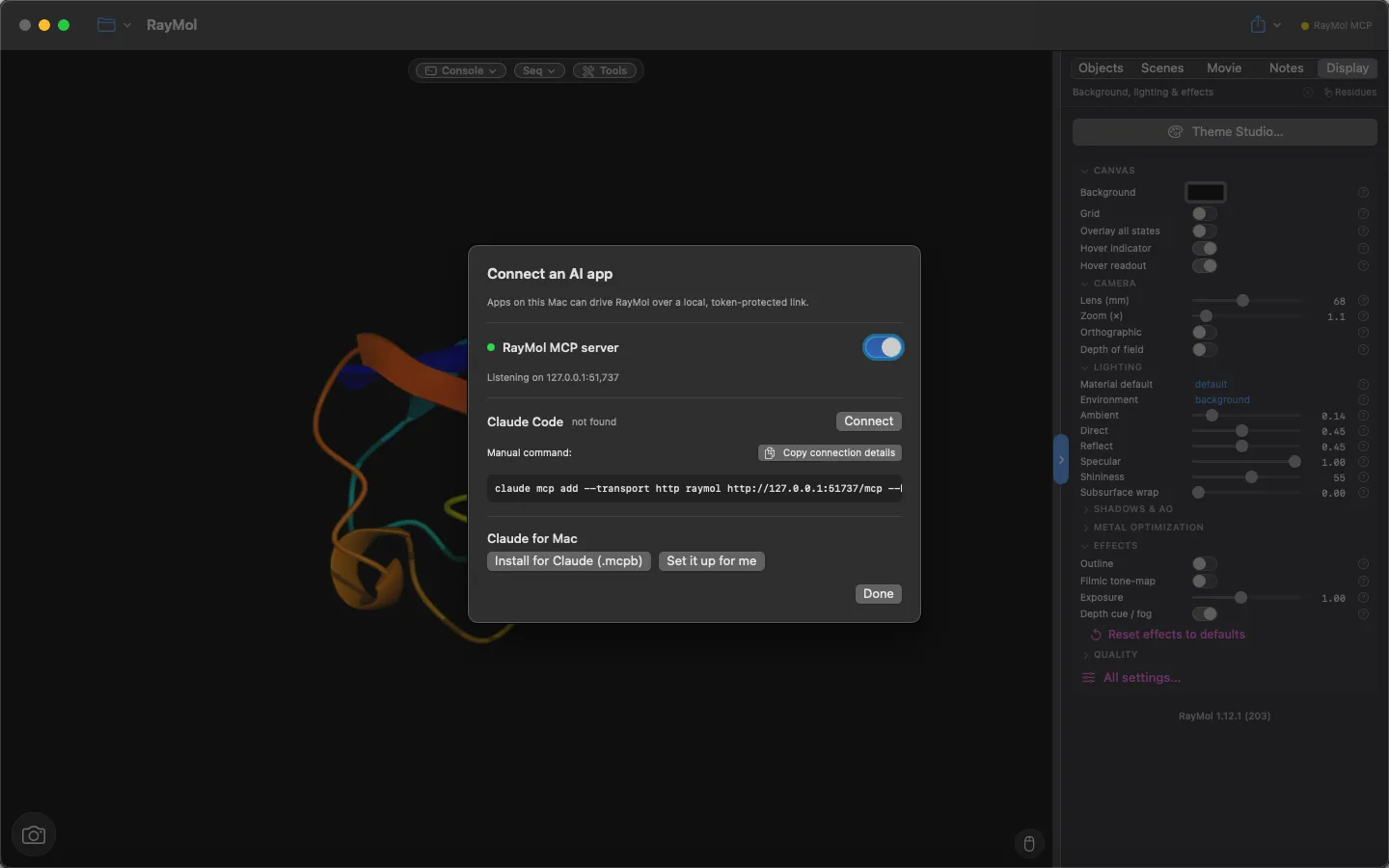 Connect ▸ Connect an AI app…
- Open RayMol on macOS.
- Choose Connect ▸ Connect an AI app… from the menu bar, or choose Connect ▸ Enable AI control (
⌃⌘M). - Toggle the RayMol MCP server switch to On. The sheet will confirm that the server is listening (for example, on
127.0.0.1:51737).
Claude Code
Section titled “Claude Code”- In the Connect an AI app sheet, locate the Claude Code section. If the CLI is installed, RayMol displays
✓ detected. RayMol looks for theclaudeCLI in /opt/homebrew/bin, /usr/local/bin, ~/.claude/local and ~/.local/bin; otherwise the sheet shows it as not found and Connect shows the manual command. - Click Connect. RayMol registers itself with Claude Code (user scope) and adds a RayMol skill. In Claude Code, run
/mcpor restart it. - Alternatively, click Copy connection details to copy the manual CLI command to your clipboard:
claude mcp add --transport http raymol http://127.0.0.1:51737/mcp --header "Authorization: Bearer <token>" --scope user- Run the command in your terminal, then click Allow in RayMol’s prompt the first time Claude connects.
Claude for Mac (Desktop)
Section titled “Claude for Mac (Desktop)”Claude for Mac connects through a small helper mode of the RayMol app (RayMol --mcp-bridge):
- In the Connect an AI app sheet, navigate to Claude for Mac.
- Choose one of two installation methods:
- Install for Claude (.mcpb): Generates an official
.mcpbbundle in your Downloads folder and opens it in Claude. Confirm the prompt inside Claude, then restart the Claude app. - Set it up for me: Automatically merges the RayMol MCP bridge configuration directly into
~/Library/Application Support/Claude/claude_desktop_config.json.
- Install for Claude (.mcpb): Generates an official
- Restart Claude for Mac if instructed. You can now prompt Claude to visualize proteins, adjust colors, and inspect structures in RayMol.
Other MCP clients
Section titled “Other MCP clients”Any MCP client supporting the Streamable HTTP transport (JSON-RPC 2.0 over HTTP POST) can connect to RayMol:
- Endpoint URL:
http://127.0.0.1:<port>/mcp(default port51737) - Headers:
Content-Type: application/jsonAuthorization: Bearer <your-token>
For other clients, choose Connect ▸ Copy connection details to copy the endpoint URL and the Authorization: Bearer … header. (The sheet’s own Copy button copies the full claude mcp add … command.) Both work only while the server is on.
Troubleshooting
Section titled “Troubleshooting”- Server is off: Ensure the RayMol MCP server toggle is enabled in Connect ▸ Connect an AI app…. If RayMol is quit and reopened, verify that the server has started.
- Port already in use: If port 51737 is in use, quit the other program using it (often a second copy of RayMol) and toggle the server off and on.
- Connection refused or authentication failed: If Claude fails to connect, choose Connect ▸ Copy connection details to copy the endpoint URL and the
Authorization: Bearer …header (the sheet’s own Copy button copies the fullclaude mcp add …command; both work only while the server is on), and update your client’s authorization header with the active token. - Claude desktop not detecting tools: Ensure you have completely quit Claude for Mac (
⌘Q) and reopened it after running Set it up for me or installing the.mcpbbundle.