
Keyboard Shortcuts & Startup Script
RayMol integrates native macOS and iPadOS keyboard accelerators with PyMOL’s command execution system. You can navigate the interface with menu shortcuts, remap viewport operations with cmd.set_key, and customize launch behavior using a ~/.raymolrc startup script.
Application Keyboard Shortcuts
Section titled “Application Keyboard Shortcuts”Shortcuts are listed for macOS. On iPad with a hardware keyboard, ⌃M, ⌃E, ⌃D, ⌃P, ⌘1, ⌘2 and ⌘3 also work; the other shortcuts and the viewport keys are macOS only.
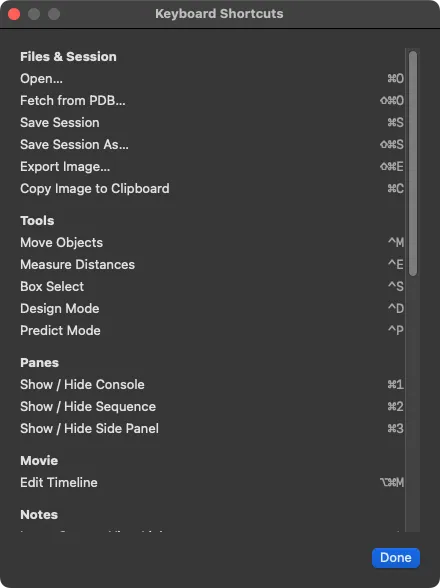 Help ▸ Keyboard Shortcuts (⌘/).
Files & Session
Section titled “Files & Session”| Command | Shortcut | Description |
|---|---|---|
| Open… | ⌘O |
Open a local structure or session file |
| Fetch from PDB… | ⇧⌘O |
Download a structure from the RCSB PDB |
| Save Session | ⌘S |
Save session (.pse) in place |
| Save Session As… | ⇧⌘S |
Save session with a new filename |
| Export Image… | ⇧⌘E |
Save a PNG of the view at 2× size |
| Copy Image to Clipboard | ⌘C |
Copy rendered viewport image to clipboard (or selected text when in a text field) |
| Command | Shortcut | Description | Availability |
|---|---|---|---|
| Move Objects | ⌃M |
Activate 3D Move gizmo | All platforms |
| Measure Distances | ⌃E |
Enter interactive measurement mode | All platforms |
| Box Select | ⌃S |
Toggle 2D selection marquee | macOS |
| Design Mode | ⌃D |
Enter on-device ProteinMPNN sequence design | macOS; iPad/iPhone on iOS 18+ |
| Predict Mode | ⌃P |
Enter on-device structure prediction | macOS; iPad/iPhone on iOS 18+ |
Panes & Views
Section titled “Panes & Views”| Command | Shortcut | Description |
|---|---|---|
| Show / Hide Console | ⌘1 |
Toggle the PyMOL command terminal |
| Show / Hide Sequence | ⌘2 |
Toggle the sequence viewer strip |
| Show / Hide Side Panel | ⌘3 |
Toggle the right-hand inspector column |
Movie & Notes
Section titled “Movie & Notes”| Command | Shortcut | Description |
|---|---|---|
| Edit Timeline | ⌥⌘M |
Toggle the movie timeline dock |
| Insert Camera View Link | ⌥⌘L |
Insert a camera view link into the active note |
| Toggle Edit / Preview | ⌥⌘P |
Switch between Markdown edit and rendered preview |
| Increase Note Font Size | ⌥⌘+ |
Increase text size in Analysis Notes |
| Decrease Note Font Size | ⌥⌘- |
Decrease text size in Analysis Notes |
Help & Connectivity
Section titled “Help & Connectivity”| Command | Shortcut | Description | Availability |
|---|---|---|---|
| Keyboard Shortcuts | ⌘/ |
Open the in-app shortcuts cheat sheet | macOS |
| Enable AI control | ⌃⌘M |
Toggle the local MCP server for AI tool access | macOS (direct-download build only) |
Viewport Navigation & Special Keys
Section titled “Viewport Navigation & Special Keys”When interacting directly with the 3D canvas (macOS only; viewport keys work while the command line is empty):
| Key | Action |
|---|---|
Tab |
Cycle forward through selection modes (Atoms → Residues → Chains → Segments → Objects → Molecules → C-α) |
⇧Tab |
Cycle backward through selection modes |
Esc |
Leave the active tool; otherwise deselect, then delete sele on a second press |
← / → |
Step through trajectory or movie frames |
Page Up / Page Down |
Cycle through stored scenes |
Home |
Zoom to everything |
End |
Play / pause the movie |
| Arrow keys (in Tools ▸ Enter Lights Mode, beta, with a light selected) | Orbit (left/right) or pitch (up/down) the selected light by 1° (⇧-arrow nudges by 10°) |
PyMOL Key Bindings & set_key
Section titled “PyMOL Key Bindings & set_key”RayMol routes viewport keypresses into PyMOL’s internal key mapper. You can assign custom actions to keys using set_key:
set_key F1, zoomset_key F2, orientset_key CTRL-K, color yellow, seleset_key ALT-X, hide everythingKey Token Grammar
Section titled “Key Token Grammar”Key names use PyMOL’s set_key syntax:
- Prefixes include: bare (no modifier),
SHFT-,CTRL-,CTSH-(Control + Shift), andALT-(Option). - Special keys are named in lowercase (
left,right,up,down,pgup,pgdn,home,end,insert). - Function keys use uppercase (
F1throughF12). - Bare letters and numbers cannot be bound without
CTRLorALT, as bare characters are reserved for standard typing. - The
⌘(Command) modifier is reserved exclusively for macOS system and application menus and cannot be bound viaset_key.
Text Input vs. Viewport Bindings
Section titled “Text Input vs. Viewport Bindings”To protect macOS text-editing conventions and international keyboard layouts:
- Command line typing: When the command line or a text field has active focus and contains text, navigation keys (
←,→,Home,End) and emacs-style editing shortcuts (⌃A,⌃E,⌃K, etc.) act on the text field rather than triggering PyMOL bindings. - Option / Alt key behavior: On macOS,
⌥(Option) functions as the system character composition key (for example, typing@via⌥Lon German keyboards). Consequently,ALT-key bindings fire only when text fields are not focused. - To enable custom
ALT-andCTSH-shortcuts while typing, turn on View ▸ Send Key Bindings to Viewport While Typing. Only bindings you have explicitly customized will be sent to the viewport; stock character composition remains intact. - Shortcut shadowing: If a custom startup script binds a
⌃-letter shortcut that conflicts with a RayMol menu item (such as⌃Mor⌃E), your script’s binding takes precedence for the key, and RayMol logs an audit notice in the console at startup. The menu item remains accessible via mouse click.
The Startup Script (~/.raymolrc)
Section titled “The Startup Script (~/.raymolrc)”When RayMol launches on macOS, it automatically looks for and executes a user configuration script. The startup script is macOS only (not iPad or iPhone).
In the direct-download build, the startup script is read from your home folder:
~/.raymolrc.py(Python syntax)~/.raymolrc(PyMOL command syntax)
In the sandboxed Mac App Store build, the home folder is the app container, so put the script in ~/Library/Containers/io.raymol.RayMol/Data/ instead. If both files exist, both run: ~/.raymolrc.py first, then ~/.raymolrc.
The startup script executes after default theme initialization, allowing you to set preferences, register custom functions, and bind shortcuts.
Migrating from ~/.pymolrc
Section titled “Migrating from ~/.pymolrc”If you have an existing ~/.pymolrc or ~/.pymolrc.py and no ~/.raymolrc is present, RayMol prompts you on first launch to import your existing settings. If you decline, RayMol records your choice in ~/.raymolrc.skip and will not prompt you again.
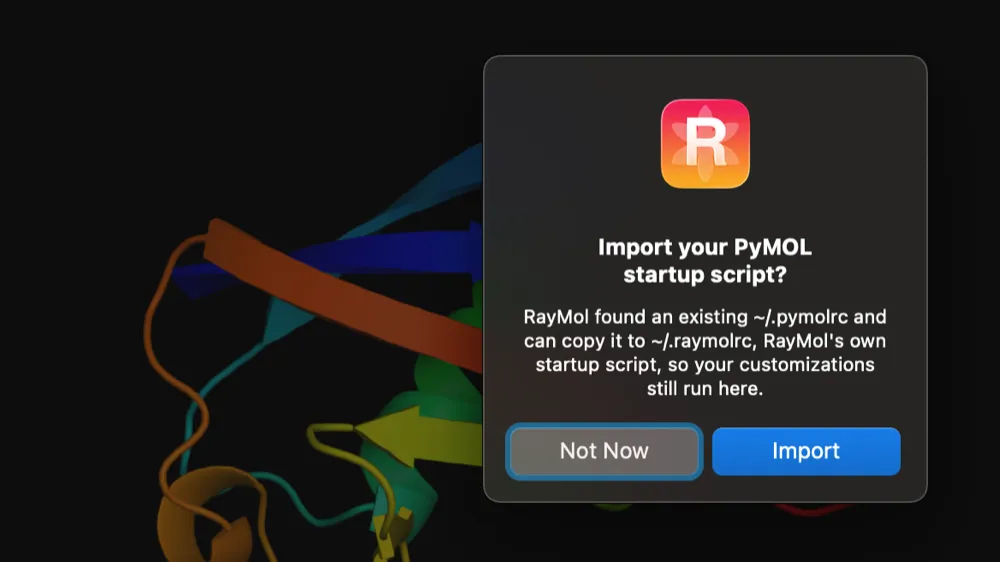 The one-time prompt to import
 ~/.pymolrc.
Example ~/.raymolrc.py
Section titled “Example ~/.raymolrc.py”from pymol import cmd
# Configure default representation settingscmd.set("cartoon_fancy_helices", 1)cmd.set("cartoon_flat_sheets", 1)cmd.set("specular", 0.3)
# Define custom key shortcutscmd.set_key("F1", lambda: cmd.zoom("visible"))cmd.set_key("F2", lambda: cmd.orient())cmd.set_key("CTRL-Y", lambda: cmd.color("cyan", "sele"))
# Custom analysis macrodef show_contacts(selection="sele", cutoff=3.5): cmd.select("nearby_waters", f"resn HOH and (({selection}) around {cutoff})") cmd.show("spheres", "nearby_waters")
cmd.extend("show_contacts", show_contacts)