
Materials & Looks
Color conveys what an atom or domain is; a material determines what it is made of. In RayMol, each visual layer—cartoon, molecular surface, sticks, and spheres—can be independently assigned a distinct physical material per object. You can render a transparent glass surface enclosing a marble cartoon backbone with metallic ligand sticks, all within a single object.
Set a material or a Look
Section titled “Set a material or a Look”Materials and Looks are set per object, on one style layer at a time (Cartoon, Surface, Sticks or Spheres).
In the Inspector
- Make sure the layer is shown, for example S ▸ cartoon on the object’s row.
- In the Objects tab, expand the object with the › arrow beside its name. Its layers appear as chips; + adds one.
- Select the layer’s chip (for example Cartoon) to open its settings.
- Open the Material menu and pick a material, such as
metallic,glassormarble. - Or click the Look button beside the Material menu and pick Gold, Copper, Bronze, Steel, Chrome, Marble (statuary) or Clay (terracotta). A Look sets the material, tunes it and colours the layer’s atoms in one step.
- To fine-tune, choose Custom… in the Material menu and adjust the sliders that appear under the row. Reset returns to the material’s own values.
From the console
set cartoon_material, metallic, 1ubq # material for one layer of one objectapply_look gold, 1ubq, cartoon # or a complete Lookset cartoon_material_rough, 0.3, 1ubq # tune one knob (see Custom knobs below)Sticks and spheres follow the cartoon’s material until you give them their own (see Side chain material inheritance). Materials are saved with sessions and scenes.
The material catalog
Section titled “The material catalog”RayMol provides nine dedicated materials across three functional families, plus the default PyMOL shading:
A metallic material with the Gold Look.
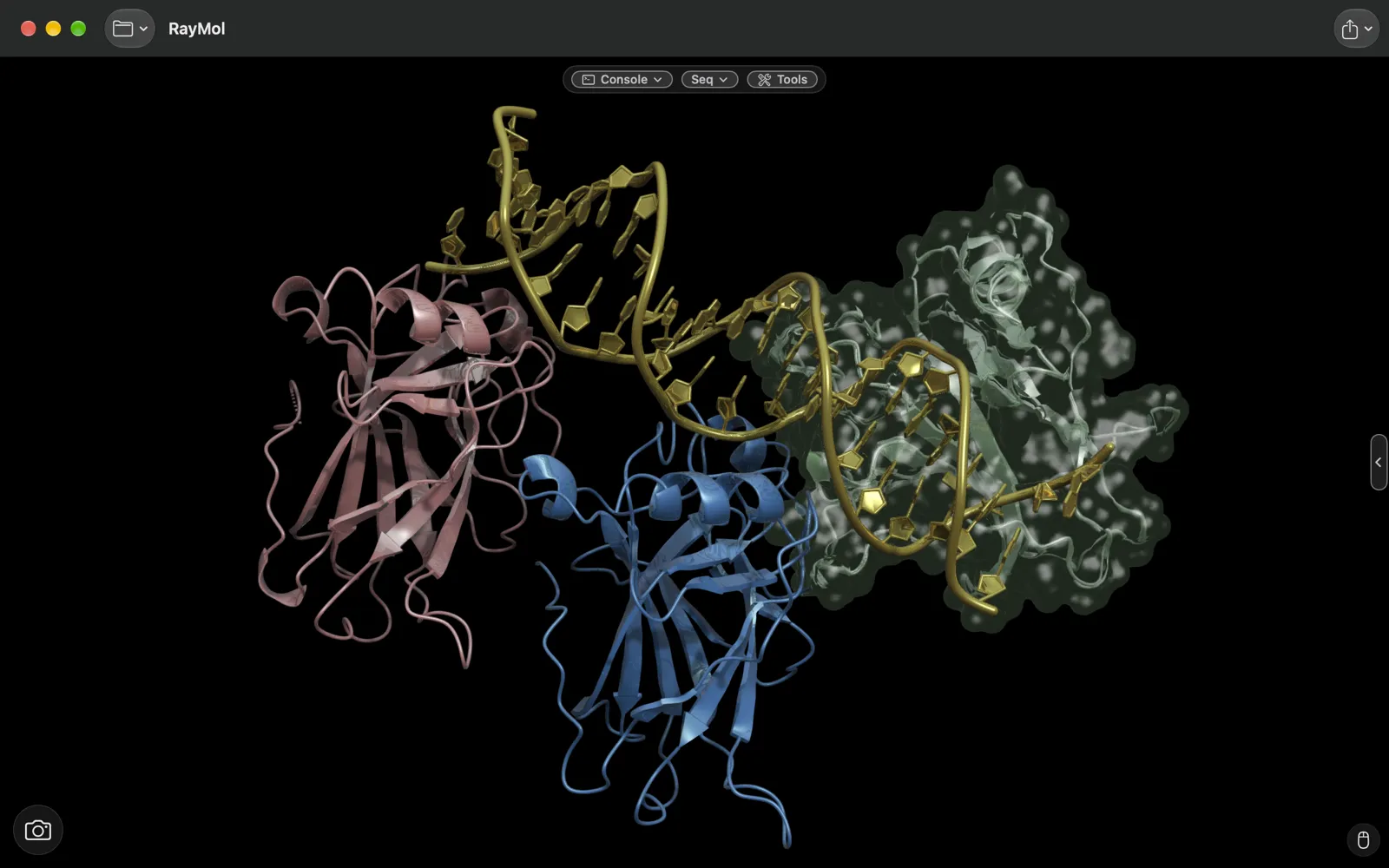 Several materials in one scene: metallic, plastic and frosted glass.
| Material | Family | Representations | Visual characteristics |
|---|---|---|---|
default |
Standard | All | PyMOL’s classic Phong shading, pixel-for-pixel unchanged. |
matte |
Procedural | All | Pure Lambertian diffuse reflection with zero specular highlight. |
plastic |
Reflective | All | Glossy clear-coat appearance with a white environment reflection over the base color. Traces self-reflections when ray tracing is active. |
metallic |
Reflective | All | A stronger, rougher environment reflection tinted by the base colour (under studio lights and CPU ray, a darker body with highlights tinted by the base colour). |
glass |
Glass | All | Transparent shell (implied 15% opacity) with Fresnel rim reflections, specular glints, and refractive distortion. |
frosted_glass |
Glass | All | Translucent shell (implied 20% opacity) with blurred environment reflection and wide, softened glints. |
jelly |
Glass | All | Dense gummy body (implied 85% opacity) with inner volumetric glow, wet specular highlights, and subtle refraction. |
marble |
Procedural | All | Polished veined stone with waxy subsurface light wrap. Vein patterns remain locked to the object during camera movement. |
clay |
Procedural | All | Unglazed matte ceramic with fine surface grain and darkening at grazing viewing angles. |
rubber |
Procedural | All | Mottled, low-sheen elastomeric skin with subtle grazing sheen. |
Material assignments in the Inspector
Section titled “Material assignments in the Inspector”In the Inspector, each style layer row (Cartoon, Surface, Sticks, Spheres) includes a Material dropdown menu:
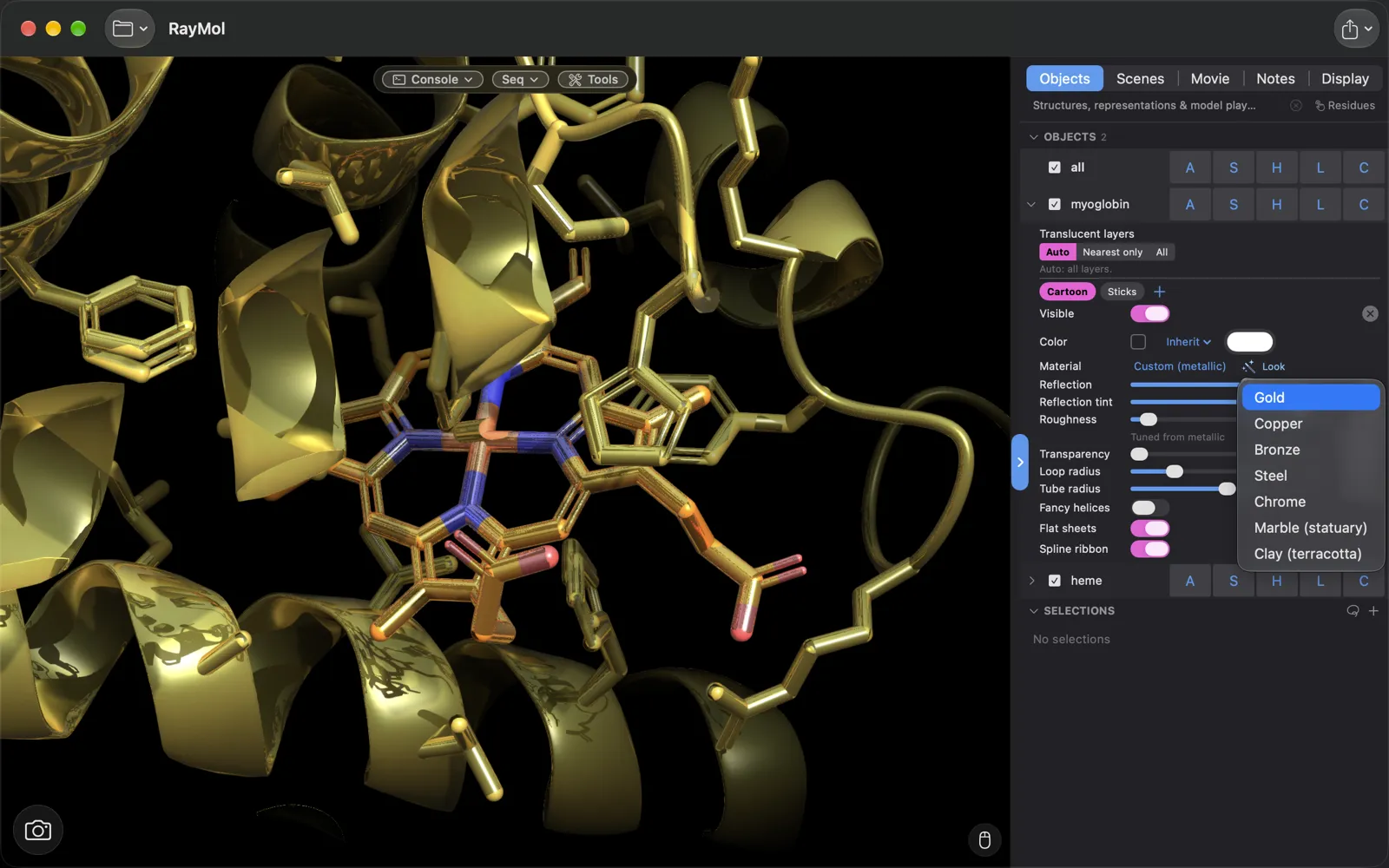 A cartoon layer’s Material and Look menus in the Inspector.
- Click the Material menu on any layer and choose a material (such as
metallicorglass). - Choose Custom… from the menu to reveal fine-tuning sliders for that specific layer. While customized, the menu displays Custom (material).
- Click Reset beside the Custom sliders, or pick another material, to clear your tuning.
Custom knobs per material
Section titled “Custom knobs per material”Each material exposes specific shader knobs when opened in Custom…:
plastic&metallic:- Reflection (
reflect): Strength of the reflected environment and ray-traced reflections. - Reflection tint (
tint): Amount of base color tint mixed into the reflection (pure white at0.0, fully tinted at1.0). - Roughness (
rough): Surface microfacet roughness, blurring reflections and widening specular highlights.
- Reflection (
glass&frosted_glass:- Reflection (
knob1): Toggle and intensity of surface Fresnel reflections and glints. - Distortion (
knob2): Toggle and strength of refractive background bending. - Roughness / Frost (
rough): Softness of surface reflections.
- Reflection (
jelly:- Skin reflection blur (
rough): Sharpness of surface reflections. - Absorption (
knob1): Color density as light passes through the body. - Inner glow (
knob2): Brightness of the internal scattering glow. - Wet highlight (
knob3): Sharpness and intensity of the moisture highlight. - Distortion (
knob4): Toggle for refractive bending.
- Skin reflection blur (
matte,clay&rubber:- Grain (
knob1) and Grain frequency (knob2) on all three;clayadds Edge darkening (knob3);rubberadds Highlight (knob3) and Sheen (knob4). Grain frequency has no effect while Grain is 0 (matte’s default).
- Grain (
marble:- Vein scale (
knob2), contrast (knob5), and sharpness (knob6): Control the procedural stone veining.
- Vein scale (
Material Looks
Section titled “Material Looks”Looks are curated one-click visual presets. Applying a Look sets the target layer’s material, configures its Custom knobs, and applies a rich base coat of atom color (look_<name>) to the underlying atoms.
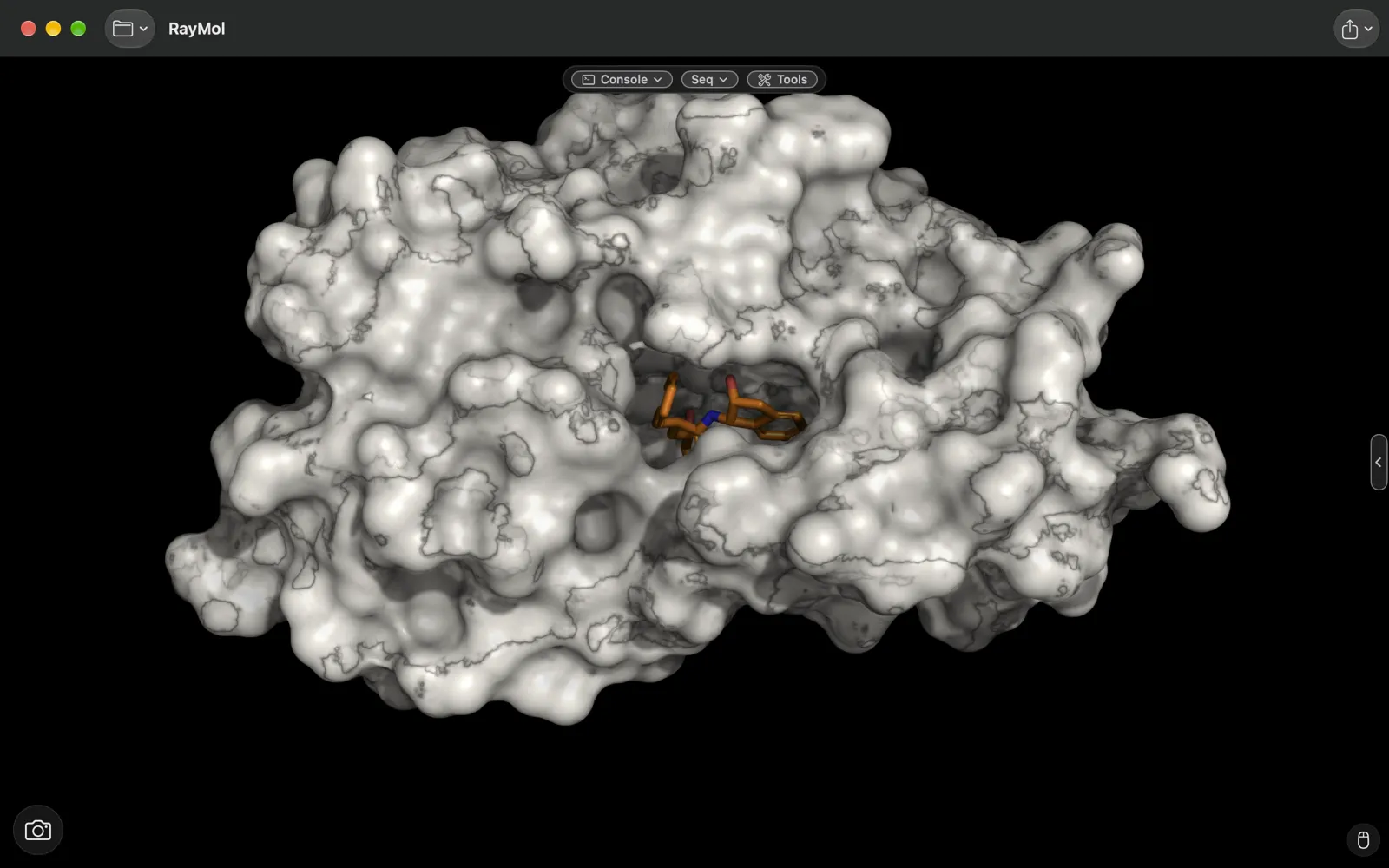 The Marble (statuary) Look.
Available Looks include:
- Gold: Deep metallic gold (
metallic) with high reflection and fine polish. - Copper: Warm burnished copper (
metallic). - Bronze: Earthy, textured patinated bronze (
metallic). - Steel: Cool, balanced industrial steel (
metallic). - Chrome: High-reflection, near-mirror polish (
metallic). - Marble (statuary): Warm white sculptural stone (
marble) with soft gray veining. - Clay (terracotta): Rich terracotta earthenware (
clay) with fine tactile grain.
Apply a Look
Section titled “Apply a Look”Click the Look selector chip adjacent to the layer’s Material menu in the Inspector, or run apply_look in the command prompt:
Picking a material, then a Look, from a layer’s row.
apply_look gold, myprotein, cartoonapply_look statuary, myprotein, surfaceapply_look chrome, ligand, stickSide chain material inheritance
Section titled “Side chain material inheritance”When displaying a cartoon alongside sticks or spheres (such as in cartoon-plus-side-chains representations), sticks and spheres automatically inherit the cartoon’s material and Custom tuning:
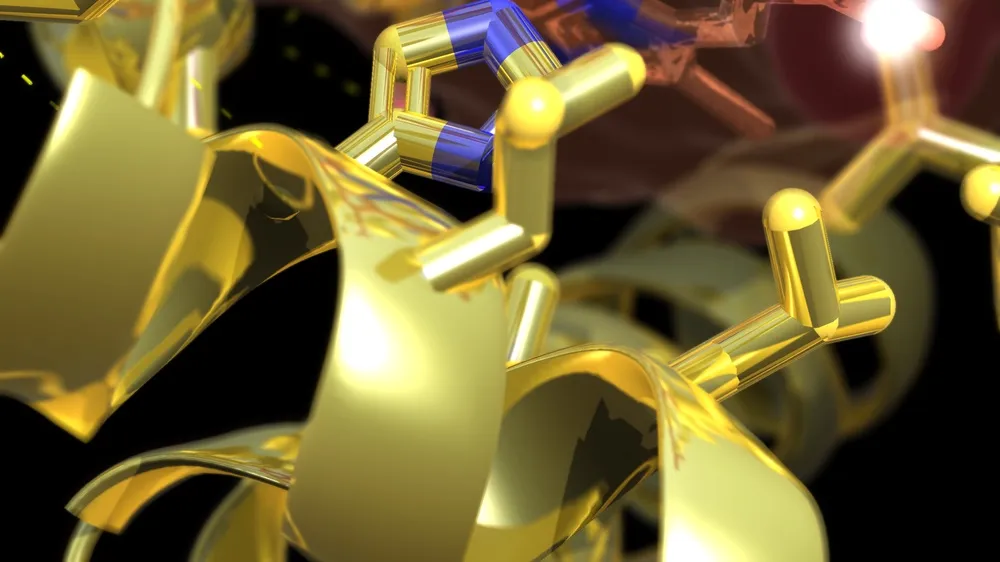 Side chains follow the cartoon’s material until you give them their own.
- The Inspector’s stick or sphere Material row displays Cartoon’s (material).
- If you assign an explicit material to sticks or spheres, inheritance breaks.
- To re-enable inheritance, choose Inherit (• Cartoon’s) from the Material menu, or run:
unset stick_material, myproteinunset sphere_material, myprotein
- Surface representations never inherit from the cartoon.
Command-line configuration
Section titled “Command-line configuration”Materials are configured per object using dedicated settings:
set cartoon_material, marble, myproteinset surface_material, glass, myproteinset stick_material, metallic, ligandset sphere_material, jelly, ions
# Global fallback for representations without an explicit materialset material_default, matteCustom knob settings
Section titled “Custom knob settings”Configure custom overrides from the command line using <layer>_material_<knob>:
set surface_material, metallic, myproteinset surface_material_rough, 0.05, myproteinset surface_material_tint, 0.9, myprotein
# Revert to the material's default valueunset surface_material_rough, myprotein
Transparency, peeling, and refraction
Section titled “Transparency, peeling, and refraction”Implied alpha
Section titled “Implied alpha”The glass family features built-in transparency values:
glass: 15% opacity (alpha = 0.15)frosted_glass: 20% opacity (alpha = 0.20)jelly: 85% opacity (alpha = 0.85)
A non-zero transparency on the layer (transparency, cartoon_transparency, stick_transparency, sphere_transparency, or the Inspector slider) always overrides the implied alpha.
Translucent layers and peeling
Section titled “Translucent layers and peeling”In standard rendering, transparent overlapping geometry reveals internal joints, back faces, and intersecting polygons. RayMol provides transparency peeling (transparency_peel) to discard internal geometry and render only the nearest exterior skin:
- In the Inspector, adjust Translucent layers in the object header:
- Auto (
-1): Automatically enables peeling when any layer uses glass, frosted glass, or jelly. - Nearest only (
1): Forces single-skin peeling across all translucent representations. - All (
0): Disables peeling, rendering all internal overlapping layers.
- Auto (
- From the command prompt:
set transparency_peel, 1, myprotein
Refraction
Section titled “Refraction”Glass, frosted glass, and jelly dynamically bend background opaque structures according to surface curvature:
- Ligands or cartoon backbones seen through a glass molecular surface distort naturally toward the lobe edges.
- Refractive distortion can be toggled beside the Custom… sliders or modulated via command line:
set surface_material_knob2, 0.0, myprotein # Disable glass distortion
Environment reflections and ray tracing
Section titled “Environment reflections and ray tracing”Environment reflections (material_env)
Section titled “Environment reflections (material_env)”Reflective materials (plastic, metallic) and the Fresnel rims of glass materials reflect an environment map:
set material_env, 0 # Reflect background color (default)set material_env, 1 # Reflect neutral photography studioset material_env, 2 # Disable environment reflectionsHardware ray tracing through transparency
Section titled “Hardware ray tracing through transparency”By default, transparent objects are excluded from real-time hardware ray tracing calculations to preserve high interactive frame rates.
To enable traced shadows, ambient occlusion, and mutual reflections for transparent and glass materials, enable:
set metal_rt_transparent, onWhen active:
- Dense jelly casts dark traced shadows, while clear glass casts faint ones.
- Transparent geometry generates ambient occlusion proportional to its alpha.
- Reflective metals and plastics reflect nearby transparent shells.
Classic CPU ray command mapping
Section titled “Classic CPU ray command mapping”When rendering static figures using PyMOL’s CPU ray tracer (ray or png ..., ray=1), RayMol maps materials to built-in procedural textures:
| Material | CPU ray mapping |
|---|---|
marble |
ray_texture 2 (Swirl 1) |
clay |
ray_texture 1 (Matte 1) |
rubber |
ray_texture 4 (Matte 2) |
frosted_glass |
ray_texture 1 combined with layer transparency |
matte |
Zero specular highlight |
plastic |
Heightened specular highlight |
metallic |
Darkened diffuse body with specular highlight tinted by base color |
glass, jelly |
Layer rendered with implied transparency |
Setting an explicit ray_texture value on an object overrides the material’s default CPU mapping.
Interaction with studio lights (beta)
Section titled “Interaction with studio lights (beta)”When studio lights are enabled, materials react realistically according to their physical parameters:
- Matte and clay surfaces absorb light without creating specular glare.
- Metallic materials reflect studio lights in their own base color.
- Glass surfaces produce focused, bright glints matching each spotlight’s beam position.
For complete details on configuring studio spotlights and volumetric atmosphere, see the Studio Lights & Atmosphere guide.
Saving in scenes and sessions
Section titled “Saving in scenes and sessions”All material assignments, Custom knob overrides, transparency_peel, material_env, and material_default settings are saved directly in .pse session files and scene states (scene <name>, store). Switching between scenes restores each object’s exact material configuration.